 Size/position/rotation
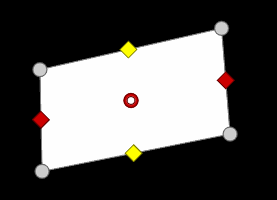
With this effect, you can edit the size, position and rotation of an object (e.g. video, image, title, etc.) in space.
You can also adjust the resize and reposition the object using the handles in the program monitor visually:
 the red handles control the width
 the yellow handles control the height
 the gray handles in the corners can be used to adjust both simultaneously
If you want to work using the anchor point, first move the anchor point before changing the position or rotation.
Size
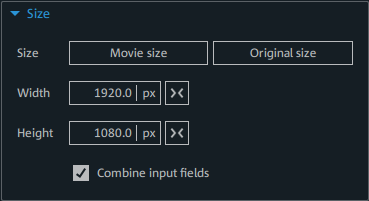
Here you adjust the size of the selected object.
| Movie size | The object will be scaled to the size of the movie. |
| Original size | The object will be displayed in the original size. |
| Width and Height |
Using the input button, enter an absolute size (px) or relative value (%) for the width and height. The relative value refers to the footage size, the absolute size refers to the size of the object. Click the units to switch between pixels and percentage. |

|
The object will be reset to the original size. |
| Combine input fields | Enable this option to retain the aspect ratio of width and height. |
Scaling in any direction is always performed with relation to the anchor point. If you compress or stretch the element, the area on top of the anchor point will not move.
Position
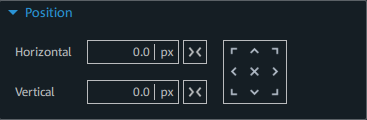
| Horizontal/Vertical |
These values can be used to move the object in relation to its anchor point. Enter an absolute size (px) or relative value (%) to specify the position of the anchor point. The object moves in relation to the predefined anchor point. Click the units to switch between pixels and percentage. |
||||||||
|
|
The object's position is moved so that the anchor point is reset to 0 and centered horizontally or vertically in the center of the movie. | ||||||||

|
This button can be used to easily adjust the object per click.
|


To visually adjust the position, click on the object and drag it with the mouse to the desired position.
When the object is moved, the anchor point is also moved.
Rotation
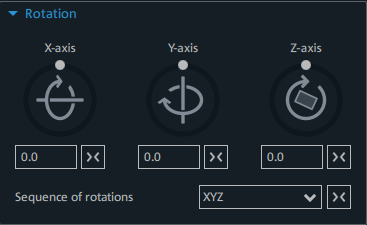
The layer in which the element is situated may be rotated on three spatial axes (X, Y, Z). The anchor point also serves as the center of rotation. The angle of rotation can be adjusted directly by the three control elements or entered in the fields using degrees (°). The set rotations are applied one after the other. The order used can be set in the selection field. This might be necessary in certain situations, e.g. if you specify more than one rotation or want to rotate around more than one axis.
Anchor point 
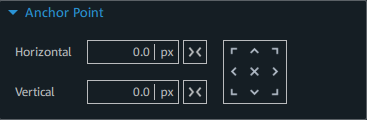
Using the anchor point, you can select and move the rotation point (center point) of an object freely. The anchor point functions as the reference point for all three operations.
| Horizontal/Vertical |
Enter an absolute size (px) or relative value (%) to move the object in relation to the anchor point. The position of the anchor point will remain unchanged. Click the units to switch between pixels and percentage. |
||||||||
|
|
The anchor point is reset to 0 horizontally or vertically. The position of the anchor point remains unchanged. The object will move so that it is centered horizontally or vertically at the anchor point. | ||||||||
|
|
This button allows you to easily align the anchor point on the object with one click. In contrast to entering values, the anchor point moves and the position values will change. The position of the object remains unchanged.
|

TIP The values in the number fields can also be changed by dragging them vertically with the mouse.