Timeline mode 
In Timeline mode, your photos are displayed in terms of time: The longer the corresponding object in the track is, the longer the respective photo will be shown during the Photostory's playback. Unlike Storyboard mode, the speed of the playback marker does not change on playback. You also have direct access to all media files currently being used in the Photostory.

Timeline and Markers
The progress of the Photostory in the movie is displayed horizontally above the tracks. To structure this progression, the actual timeline is visible above the first track. The unit of measurement of the timeline is milliseconds.
The start and end markers can be set with a mouse-click in the timeline. A left-click sets the start marker and a right-click sets the end marker. The range between the start and end markers in the timeline is played back as an endless loop.
The playback marker is a red vertical line, which moves during playback from left to right. It indicates the current play position.
Tracks
By default, there are 8 visible tracks available, and additional tracks are added dynamically as needed.
Any object can be freely positioned on any of the tracks. For a clearer overview, however, we recommend positioning the objects as follows:
-
Video and image objects on track 1,
-
Sound objects on track 4, and
-
assign other objects such as titles and overlay effects to all the other tracks.
Zoom
Keyboard shortcut: The easiest way to zoom is by using the key combination Ctrl + Up arrow (for zooming in) and Ctrl + Down arrow (for zooming out).
Zoom: Right-clicking on the start marker opens the context menu where you can select the most important zoom levels.
Sliders: Use the slider ("fader") to adjust the visible clip on the horizontal time axis.

Objects
All of the material, including photos, videos, background music, titles and text, transitions, decorative elements, etc., appear as "objects" on tracks when imported into a project. All objects can be cut, edited with effects and arranged.
Effects are added as objects underneath their "reference object" and form a group that moves along with the reference object.
During playback all objects on all tracks are mixed together automatically. When moving a photo, all related objects will be moved along with it, for example, audio recordings, frames and text objects.
Combined objects
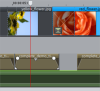
If photo or video files include an audio track, a combined object will be created which has an image portion and an audio portion. The video's audio material is displayed in the lower section.
The audio track can be removed and reinserted into the combined object by right-clicking. The automatic volume reduction and sound optimization can also be started (in "Audio and waveform display").
 Combined objects can also ungrouped (separated) to be edited. This allows the video and audio tracks to be edited independently of one another.
Object cutting and fades
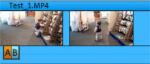
All objects can be shortened with their lower edge “object handles”. Move the mouse over one of the lower corners of the object until the mouse pointer becomes a stretch symbol (double arrow). You can now shorten the object until it is the length you want.
At the top ends of every object you'll find two fade handles that can be adjusted to fade an object in or out.

Shortcut menu
Right-clicking on an object opens the context menu with effects. It is equipped with the same effects as in the Storyboard mode and the Effects menu.
Duplicate objects
Small objects (for example, audio loops) can be duplicated easily. First, the objects that need to be duplicated must be selected. Activate the copy command and then the Insert command ("Edit" menu or via the buttons in the Timeline mode).
Speed up this process by clicking on the object to be copied with the mouse while holding down the Ctrl key. This generates a copy, which you can immediately drag to the desired position.
Mouse modes
With these mouse modes you can specify various working methods of Photostory deluxe when moving objects.
 In this mouse mode only individual objects will be moved.
 In this mouse mode all objects located behind the one selected will be moved in unison.