Export project

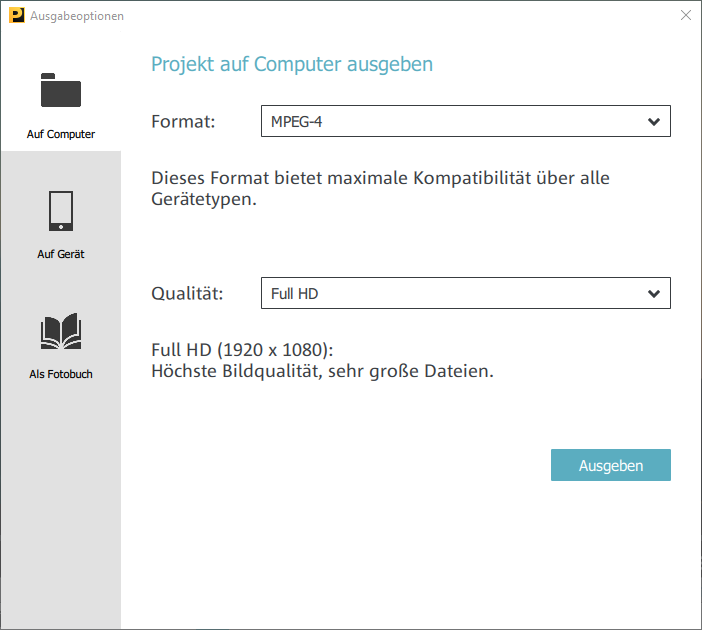
The Export button opens the export dialog which features the most important export options for your Photostory.
NOTE Note that you will only export the current Photostory. Other Photostories in the project and the disc menu will not be included.
To a computer
With this option you can convert a Photostory including all objects, effects settings, fades, texts, etc. into a video file and save it to a computer.
Select a file format (e.g. MPEG-4) and a quality level (e.g. DVD quality). The dialog provides further information about the properties of your selection.
NOTE Only the most common and most often used formats are listed as options. In File > Export movie you will find many additional file formats.
To a device
This window lets you transfer your finished video to external devices. From within the list, you can create slideshows in lower, standard or HD resolution and transfer them to a connected mobile device for Android, iOS or Windows.
As a photo book
You can order the images in your project or in the Media Pool as a photo book, calendar, photo mug or in another gift format. Photostory deluxe transfers the images to a separate program called CEWE Photoworld.
Under Projects, select whether you want to use photos from all opened slideshows and/or the photos selected in the Media Pool.
When you click Create, all selected photos for the photo book software will be copied into a separate folder. (You can change this folder under Folders. All the edits and optimizations that you have applied to the photos are included, and the photos remain this way when you order a photo book.
Following this, the CEWE Photoworld software will open. Select your product and follow the program instructions.
NOTE The CEWE Photoworld software must be installed to order personalized gifts from CEWE (photo books, prints, mugs, etc.).