Create a new project
When you start Photostory deluxe for the first time, the start dialog will appear. This dialog allows you to define the presets for the project and select whether to begin to Create a project or Load an existing project.
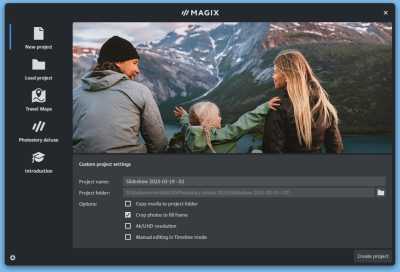
FIGURE Start dialog
Create Project
-
Start Photostory deluxe on your computer. This will open the Start dialog.
If you have deactivated the start dialog, click in the menu bar on File → New project.
-
Give your project a name.
-
Click the folder icon, if you don't want to save the project in the default project folder.
The project will be saved in the folder you have specified in the program settings. Once you have saved your project for the first time (in the menu, File → Save Project, or Ctrl + S), the preset folder will open and you can select/customize the location.
-
Set the desired options:
- Copy media to project folder: Select a project folder to create copies of the photos you want to use for your slideshow. This option should be used, for example, if you want to import objects into the slideshow from a removable storage device, and the device isn't always connected to your computer. This way you can work on your slideshow without needing the device.
- Crop photos to a format: Photos will be adjusted to fit into a format.
- 4K/UHD resolution: If you are using photos or 4K video in your project and want to export it for display on a 4K-compatible device, activate this setting.
- Manual editing in Timeline or Storyboard mode.
-
Click Create a project to create a new project.
Load project
Here you can select and open a previously saved project.
Load existing project
Click on Open and select the project → Open.
Recently opened projects
All recently opened projects are displayed in the list.
Click on a project to open it.
Travel Maps
Open the tool MAGIX Travel Maps to create animated routes.
Photostory deluxe
An overview of new program functions and features.
Getting Started
Access video tutorials, the magix.info community, or online support.