3D Fly in / Fly out
The 3D Fly-In/ Fly-Out 3D transition reveals a video event by allowing you fly an event in or out from a point in space that you define. You can rotate the event through its flight and add specular light reflected on its surface during flight.
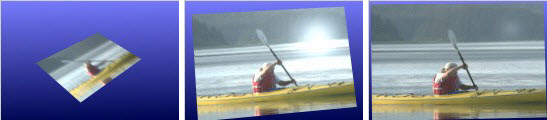
|
Item |
Description |
|---|---|
|
Far X Position |
Drag the slider or type a value in the box to set the horizontal position to (or from) which the event flies out (or in). |
|
Far Y Position |
Drag the slider or type a value in the box to set the vertical position to (or from) which the event flies out (or in). |
|
Far Z Position |
Drag the slider or type a value in the box to set the distance to (or from) which the event flies out (or in). |
|
Rotations (X) |
Drag the slider or type a value in the box to set the number of bottom-to-top rotations that will be applied to the event during its flight (top-to-bottom rotations if the Fly In checkbox is selected). |
|
Rotations (Y) |
Drag the slider or type a value in the box to set the number of right-to-left rotations that will be applied to the event during its flight (left-to-right rotations if the Fly In checkbox is selected). |
|
Rotations (Z) |
Drag the slider or type a value in the box to set the number of counterclockwise rotations that will be applied to the event during its flight (clockwise if the Fly In checkbox is selected). |
|
Specular Light |
Drag the slider or type a value in the box to set the intensity of light reflected on the surface of the event. |
|
Fly In/Fly Out |
Select the Fly In radio button if you want the second event to fly in to replace the first event. Select the Fly Out radio button if you want the first event to fly out to reveal the second. |
Last modified on December 08, 2025