Soundtrack Maker
Music tracks that match the mood are generated automatically by Soundtrack Maker. Even mood changes are possible.
Open Soundtrack Maker via "Edit" > "Wizards".
1. Choose music genre

Choose a musical style first.
The option "Apply to selected range only" limits the length of the background music you want to create.
NOTE "Apply only in selected area" works only if no emotion exists yet outside the currently selected area. Otherwise, the soundtrack will be used up to the point where the selected emotion is in place, so that there are no gaps in the soundtrack.
Range start and end may be set with the left and right mouse button if Soundtrack Maker is open.
2. Set mood change
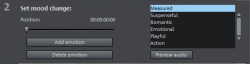
You can select a mood from the list.
Preview: Here you can preview your selected emotion.
Position: With the position slider you can go to a certain position to set the emotions at a certain position. The playback marker may be moved instead with the left mouse button. The preview will be displayed in the program monitor simultaneously.
Add emotion: This button inserts the selected mood at the current position. Soundtrack Maker will then suggest a new position for the next emotion by repositioning the position slider. You can also position it elsewhere and add different moods.
Delete emotion: Removes the currently set emotion.
3. Generate background music

Clicking "Create soundtrack" creates a new soundtrack. "Progress" shows the current status.
NOTE Soundtracks you create are beat-based. In most cases the length of the soundtrack will not match the marker positions, so that the track can play. These are frame-based and as such, can be set to a more precise grid than a beat-based soundtrack.
Variations: If the background music that has been created is not suitable, a variation may be created. Dieses Verfahren kann sowohl für die gesamte Hintergrundmusik als auch für eine einzelne Emotion angewendet werden:
-
If you want to vary the entire background music, then click on "Create variations".
-
If you only want this to apply to a certain emotion, then move to it with the position slider first in the dialog (or the play marker on the main screen). Then activate the option "Vary only selected emotions". Now click on "Create variation".
Automatic clip adjustment: This option re-arranges the video and photo objects in your project to match the music. Make sure to deactivate this option if you do not want this function.
Last time changed: October 27, 2025