Storyboard mode 
Pictures and video footage (including the audio track) are displayed as scenes in the Storyboard. Scenes are displayed the same way regardless of their actual length in the movie, and you can drag and drop scene to rearrange them. With this kind of display, the playback marker moves in the movie at different speeds during playback. Correspondingly, it moves slower in longer scenes. A loaded file is made up of a single long "scene", which can be split into several smaller scenes. You can do so manually using the Cut button in the toolbar or via Automatic scene detection (shortcut Shift + Z).
Further information:

|
1 |
Video/Photo track All photos and videos are displayed with thumbnails in order in this track. By looking at the pictogram next to playback duration and the differently colored bar, you can tell at a glance whether an object is a video or photo and which photos are in portrait or landscape format.
|
|
2 |
Audio track This displays the fifth track (audio track by default) of your project. NOTE In certain cases, other objects, such as titles or overlay effects may display instead of the audio. This may occur when you either have older projects open where the sound effects are on a different track, or you have manually placed the sound effects on a different track in timeline mode. |
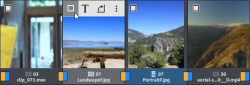
Each scene offers the following editing options:
|
Select object |
Tick to select an object to work with. |
|
|
Titles and text can be added to any film. Click on the T button, enter your text directly in the program monitor and select from different animations (try movement from bottom to top for a classic end credits effect). |
|
|
The volume in the soundtrack of each scene can be set with the loudspeaker button. |
|
|
If an image or photo is on its side or upside down, click on this button. The photo will rotate 90 degrees. |
|
|
You gives you access to a menu with various editing functions. |
|
|
Click on the large button between the scenes and select a scene transition. |
|
Display time |
Next to the pictogram, the display duration for the scene is shown in [minutes]:[seconds]. With image files, you can click the time display and adjust the display duration in the dialog that appears. This duration can be applied to all photos in the movie. |
 Add captions and texts
 Set volume
 Rotate image (only for image files)
 Additional settings options
 Transitions