Layer masks
You'll find various layer masks in the Media Pool under "Templates > Image objects". These masks can be imported directly into your project as an object. The mask automatically applies the chroma key effect "Alpha" and can be used to crop objects in a particular form. This can be used to create interesting collages with two overlapping objects that blend into one another with a layer mask.
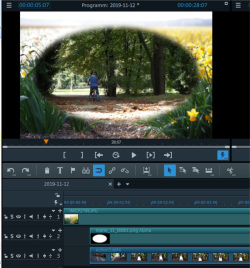
The black area of the mask contains the top object, the white area is the object underneath. If you apply a gray scale mask, the two object will be mixed according to the desired transparency.
You can also invert masks: Click on the arrow in the mask's object, which appears when you position the mouse over this object. To revert the masks, click the arrow again.