Adding stock content (Magix Content)
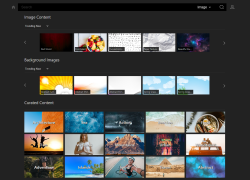
Access the MAGIX content library from directly within Photostory deluxe and discover royalty-free content for adding to your projects:
-
Video content (stock footage, animations, and visual effects)
-
Audio content (song archives and audio effects)
If your available credit has been used up, you can purchase additional credit.
 For more information see Activate credit
How to access MAGIX Content
-
In the Media Pool, click on the MAGIX Hub icon
 → Stock content.
Alternatively, click in the main menu on File → Internet → MAGIX Hub → Stock content.
-
Log in to your MAGIX account (when opening MAGIX Content for the first time).
Search for content
There are several options for searching for specific content and filtering the results.
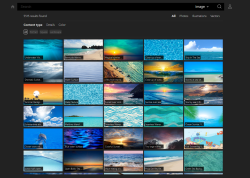
- Select the type of media for which you want to search.
- Enter a search term in the field and click Enter to start the search.
TIP Click the magnifying glass in the empty search field to filter all content.
TIP You can enter BPM values for audio files and pixel size for video files so that only files with a specific tempo or resolution appear in the search results.
- You can narrow your search results further according to:
- Content type
- Details
- Color
- Duration (minimum and maximum length)
- Click on the house icon to return to the start page.
Displaying and using content
-
Show preview:
-
To preview an audio file, click on its waveform.
The file begins to play automatically.
-
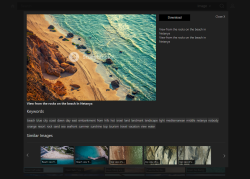
To preview a video file, double-click the video thumbnail, then click on Play.
-
-
Download content:
-
Click the Download button and from the list that appears, select the file format and the resolution in the case of videos.
-
Close the window once downloading is complete.
All downloaded content can be found under Media Pool → Photo Explorer→ MAGIX Content.
NOTE As part of your subscription, every 31 days you'll receive 10 files that you can download for unlimited use.
-