AI Text-to-speech
Text-to-speech
The text-to-speech feature enables you to convert text in a video to speech and add it as an audio file. It's an efficient way to convert large amounts of text into speech without the need to hire professional voice actors.
If your available credit has been used up, you can purchase additional credit.
 For more information see Activate credit
Convert text to speech
-
In the Media Pool, click on MAGIX Hub → Speech services.
Alternatively, click in the main menu on File → Internet → MAGIX Hub → Speech services.
-
Log in to your MAGIX account (when opening MAGIX Content for the first time).
-
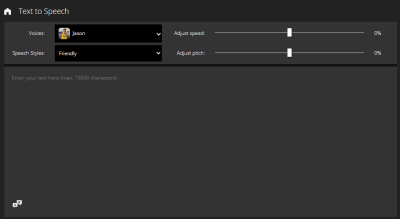
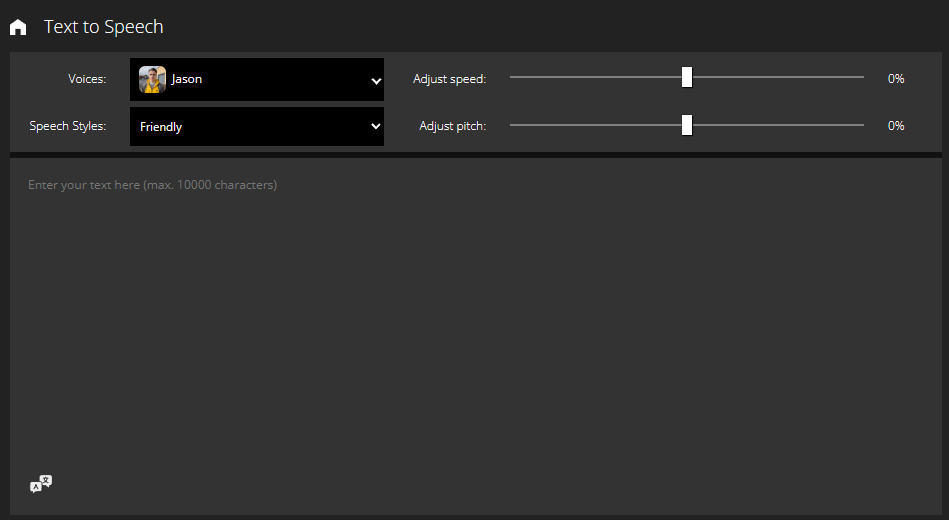
In the text field, type the text you want to convert to audio.
-
Click on Create preview to listen to a preview of the generated voiceover audio. The text is converted and then played back.
-
Click on Create full audio.
You can now save the generated speech as an audio file and insert it into the project.

Saving an audio file
-
Click on Download. The audio file that has been generated is saved as a .wav file in the MAGIX Hub folder.
You can access this folder either via the Hub window
 > Open download folder or via the Media Pool > Import tab.
Add the audio file to the project
-
Click on Insert in Timeline. The audio file is inserted into your timeline at the current cursor position and automatically saved in the MAGIX Hub folder.
Adjust style
| Change voice | Click on the drop-down list AI voices and select a voice. |
| Adjust the speed | Use the fader to decrease or increase the speed of speech. |
| Change language style | You can choose different speech styles for selected voices. |
|
Adjust pitch |
Use the fader to decrease or increase the pitch. |
Translating Text
-
Enter text in the text box.
-
Click on the button
 (Translate text).
 -
Select languages in the dialog box that appears:
-
Output language: Language of the text entered
-
Translate to: Target language
-
-
Click on the Translate button. The text in the text box will be replaced with a translation in the target language you have selected.