AI Speech-to-text
The Speech-to-text function allows you to extract the audio from supported video or audio files and convert it to text. The text objects generated using this process are then inserted into the project on the corresponding track synchronized with the original object.
-
To use this feature, you need to log into MAGIX Hub. You can do this directly when using the function.
If your available credit has been used up, you can purchase additional credit.
 For more information see Activate credit
Convert Speech to text
-
In the arranger, select an audio or video object that contains speech.
-
Click on Effects → AI Speech-to-text in the main menu.
Alternatively, click with the right mouse button on the video object in the arranger → AI Speech-to-text.
A dialog will open.
-
Please select a language.
You may leave the settings on Auto-detect and the language will automatically be recognized.
-
Click Start analysis.
When the process completes, the generated text will appear.
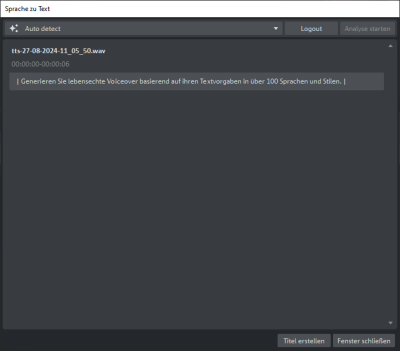
-
Click on Create title.
Several title objects will be added to the project on a new track.



Adjust the generated text
Sometimes the generated text does not accurately reflect what was said in the audio file. Many factors can affect the accuracy of the results including background noise in the file, clarity of the speech being analyzed, speaker accent, etc. You can correct the text directly in the dialog or edit the generated title objects in the title editor.
Edit the text in the dialog
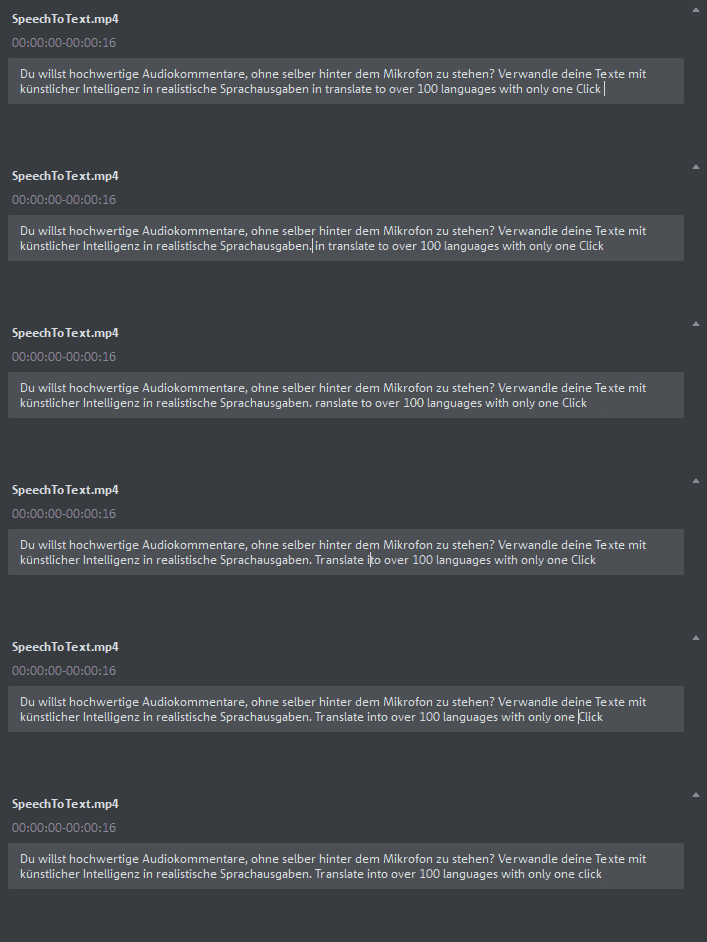
FIGURE Correction directly in the dialog
Edit text in the title editor
-
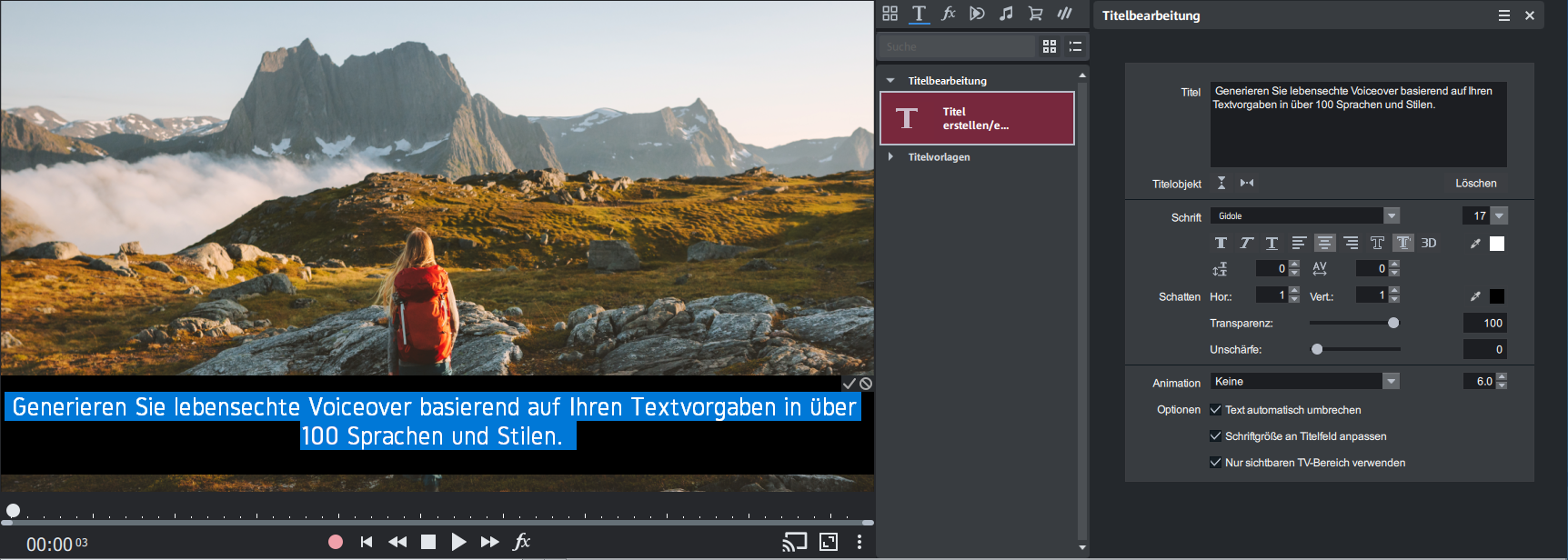
Double-click a title object in the timeline.
-
Change the text in the title editor or directly in the preview monitor.
 For more information, see Creating and editing titles.