Chroma key (green screen)
Chroma key is technology that makes it possible to replace an element of a certain color in a video with another one. This is primarily used in film and television production, for example, to remove a background or insert an object into a different scene. Using Chroma key, you can make a specific colored area in a video transparent and replace it with a new background. This offers a wide range of options for designing creative effects or removing unwanted items from your footage.
|
Background |
Green screen video |
Chroma key effect |

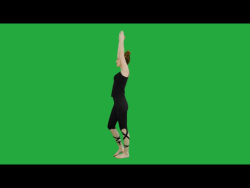

-
Switch to the Timeline mode .
-
Insert the background video into the Timeline.
-
Add the video whose color you want to replace to the track below.
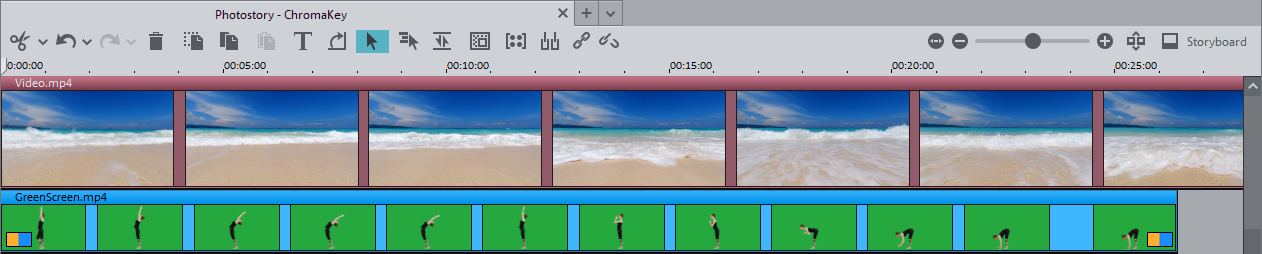
-
Adjust the size of the object/video, if necessary.
-
Mark the green screen video and within the Media Pool, click Effects → Chroma key.
-
Select the desired mode:

Deactivate The Chroma key effect will not be applied.
Hide color range Specify which color range should be removed. You can choose between the preset colors green, blue, black and white, as well as define a custom color.

Activate black/white mask This video effect uses the brightness of a video to control a cross-fading effect between two other videos on neighboring tracks. The additional videos should be situated directly above and below the object. In all black parts of the alpha-keying object, the top video is faded in, while in all white passages the bottom video is shown. Gray passages are permeable for both videos and create a mixture of the two. In the case of colored passages, the brightness of the color is used for control purposes.
-
If necessary, adjust the threshold, fading range, or anti-spill values using the sliders.
Threshold The threshold value determines how similar the selected color (e.g. green or blue) in your video must be to the specified color that should be processed as transparent. Fading Range The fading range determines how smooth the transition is between the transparent area and the visible area of your video. Anti-spill Anti-spill refers to the removal of color casts and residual colors from the main object that might be caused by the chroma key technique. This slider allows you to correct color casts by adjusting the color rendering of your main object.