Edit, divide and manage Photostories
Photostory deluxe offers a range of various editing options in two modes.
TIP The easiest way to switch between modes is to use the Tab key (you can also click on the corresponding icon).


Storyboard mode is used to view the layout of slideshows. This view offers an easy, streamlined interface to simplify the editing process. All photos are displayed in linear sequence with preview images. Use this mode to arrange your media files in order and then add and edit effects.

|
1 |
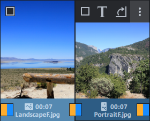
Photo/video track All photos and videos are displayed with thumbnails in order in this track. By looking at the pictogram next to playback duration and the dark bar, you can tell at a glance which photos are in portrait
|
|
2 |
Audio track This displays the fourth track (audio track by default) of your project. In certain cases, other objects, such as titles or overlay effects may display instead of the audio. This may occur when you either have older projects open where the sound effects are on a different track, or you have manually placed the sound effects on a different track in timeline mode. |
 or landscape format
  .
.
For more information see Storyboard mode .
In Timeline mode, your photos are displayed in terms of time: The longer the corresponding object in the track is, the longer the respective photo will be shown during the Photostory's playback. Unlike Storyboard mode, the speed of the playback marker does not change on playback. You also have direct access to all media files currently being used in the Photostory.

For more information see Timeline mode .
Split Photostory
Sometimes you might want to separate your Photostory into two Photostories. For instance, if you discover that you have loaded a certain number of images for a certain subject and would prefer to have this subject in its own Photostory.
- Move the photos you want to sort out to the end of the Photostory. The best way to do this is to use the Storyboard mode, reduce the view size and zoom out.
- Place the start marker at the position where you want to split the old Photostory.
-
Select "Separate Photostory" in the Edit menu.
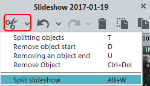
This creates a new Photostory starting at the position of the start marker which contains all the material from the old Photostory. All contents are moved too: Titles, soundtrack, transitions, effect settings, object settings, etc.
-
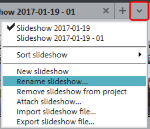
Finally, you should enter descriptive names for both Photostories. You can do this in the context menu of the Photostory tab.
Manage Photostory
You can manage several separate Photostories in one project to burn them together to one disc. In the context menu of the Photostory tab you can add new Photostories or import existing ones as well as remove slideshows that should no longer be a part of that project.
-
Right-click on the tab to open the context menu.
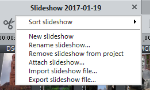
You can also embed Photostories from an existing project into your project. To do this, select the "Open" from the "File" menu. Search for the desired project on the hard drive, and then click "Open". Photostory deluxe will ask you if you would like to close the current project or add the new project. Choose "Add new project" to add Photostories to the current project.